Documents
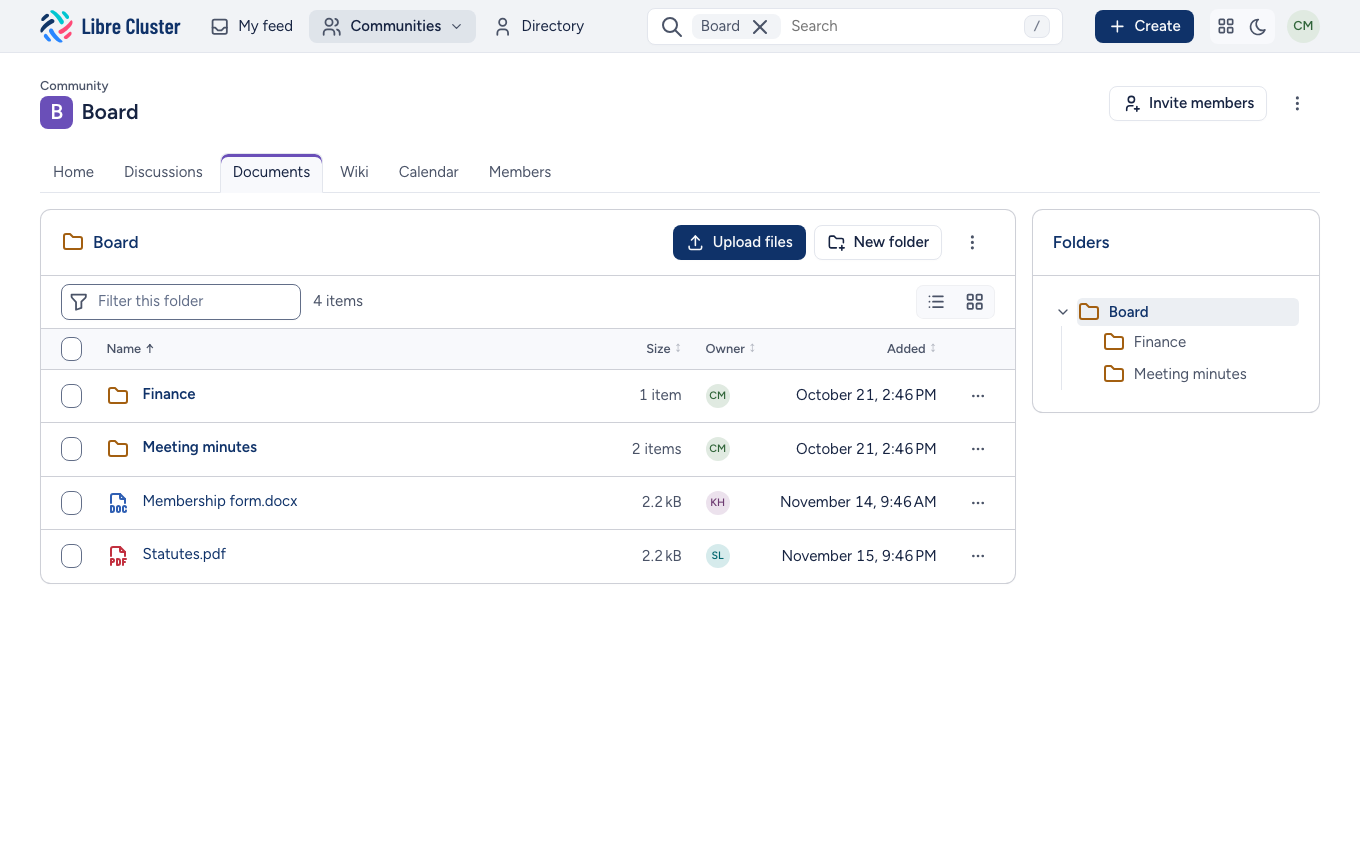
Each community has its own documents, in folders. The Documents tab shows a folder: its subfolders and documents, their size, their owner and when they were added, with the tree of folders beside it.
Adding
- Upload files sends one file or many, with their progress.
- New folder creates a folder inside the current one.
Finding
The field above the list finds a file by its name in the folder. The list sorts by name, size, owner or date, and the buttons beside the field switch between a list and a grid of thumbnails. To search inside documents, use the search: it reads their text.
Working on a document
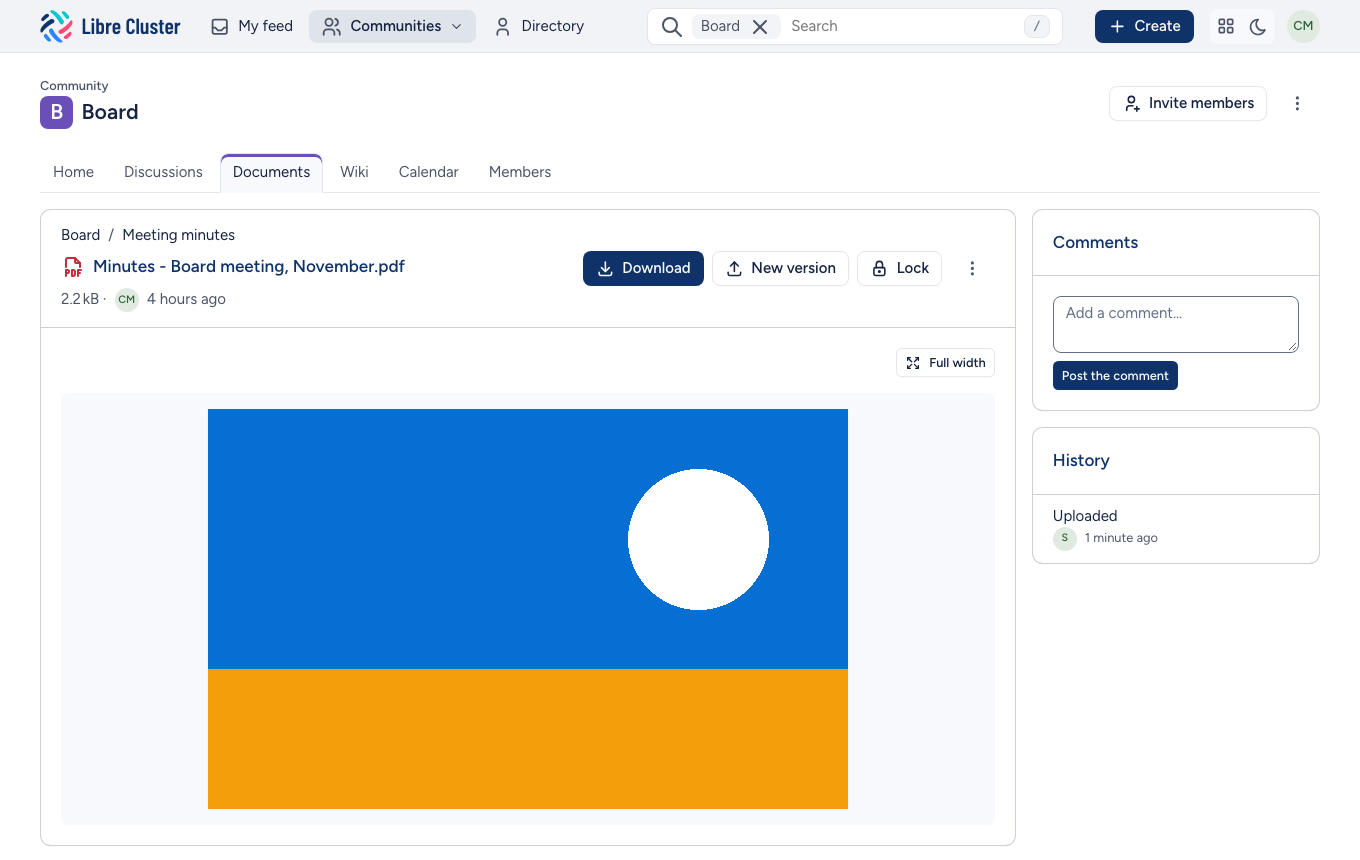
A document's page shows a preview of it, its details and its comments.
From there you can:
- Download it, or send it to someone by e-mail;
- upload a new version, which keeps the history of the earlier ones;
- lock it while you work on it, so that others know;
- edit its properties: its name and description;
- comment on it;
- move or delete it.
Many at once
Tick the boxes in a folder to act on several items at once: download them as one archive, move them to another folder, change their owner or delete them.
Permissions
By default, everything in a community is open to its members. The Permissions of a folder, in its ⋮ menu, show who has access, and let managers restrict a folder to some people.